An empty living room is hard to picture. A bedroom full of the previous owner's furniture is distracting. An overgrown yard makes buyers hesitate before they even walk in. Virtual Staging in SimpleListings solves that in seconds: upload a photo, choose the room type and style, and AI generates a version ready to show.
It is not just for pretty listing photos. The agents who get the most out of it use it during showings, on WhatsApp, and before the property is move-in ready. This guide walks through the five most useful scenarios.
What it is and where to find it
In the app it appears as AI Staging in the sidebar menu. The tool lives at /staging and works in two modes:
- Interior — living room, bedroom, kitchen, dining room, bathroom, study, or home office
- Exterior — front yard, backyard, patio, or entryway
You can upload a new photo or pick an image you already have on a property. Each generation uses one credit. New users receive free trial credits to test without commitment.
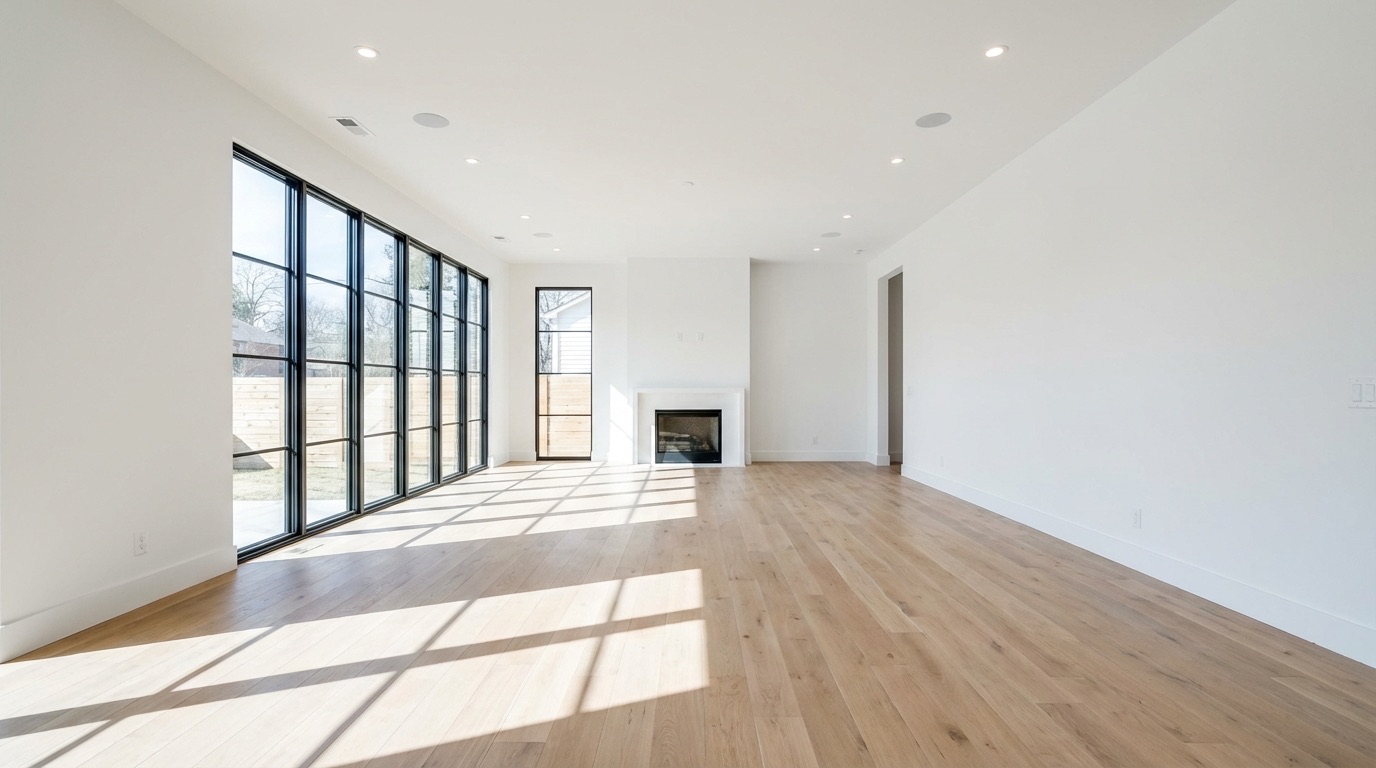
Before
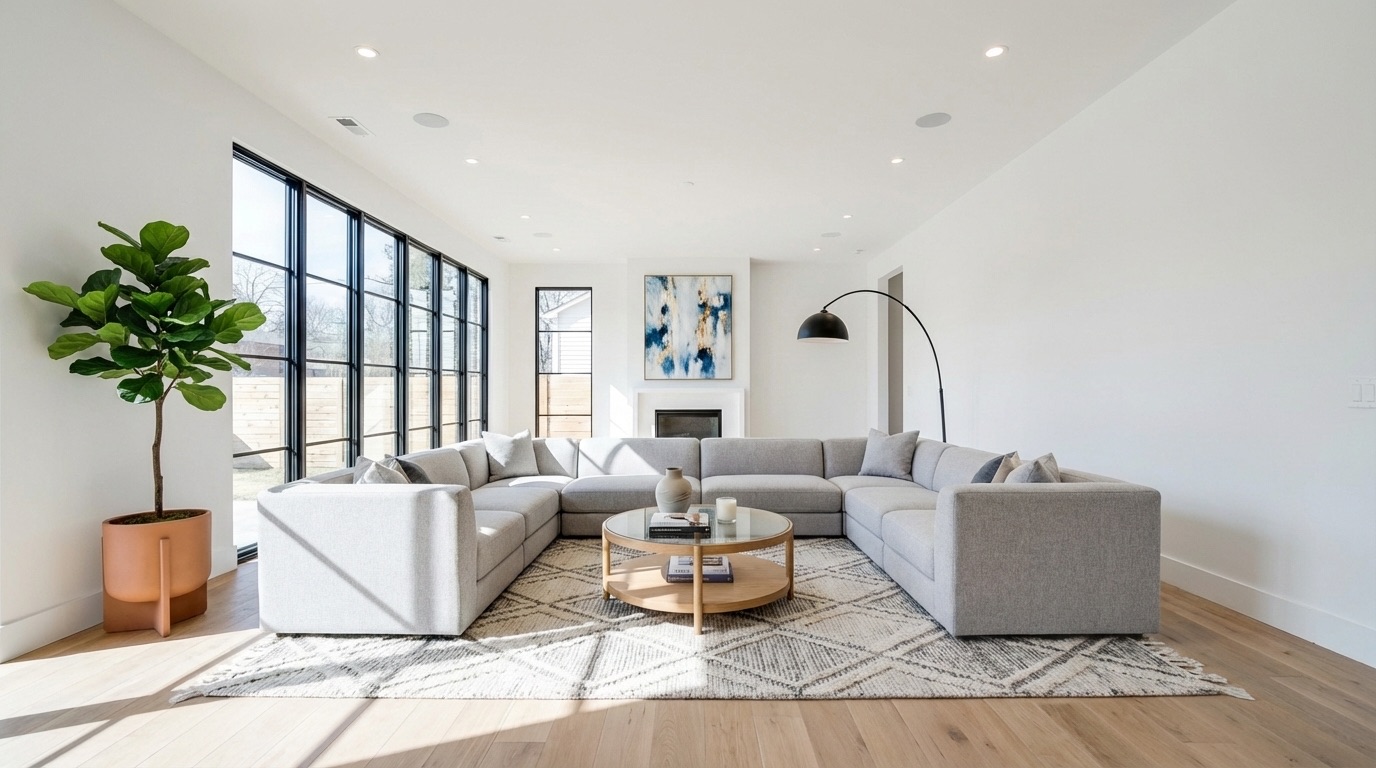
After
Quick start (60 seconds)
- Open AI Staging in the menu
- Upload a photo or choose one from your properties
- Select Interior or Exterior, the room type, and a style
- Click Generate Staged Image
- Share, download, or add the result to an album
1. Close during a showing or conversation
This is the most powerful use case — and the least obvious. When a buyer tours a property, they do not picture the same space as the next person: a young couple wants something bright and modern; a family needs to see where the kids would play; an executive wants a polished home office.
With Virtual Staging you can generate multiple versions of the same room based on the buyer profile — and show them on the spot.
| Buyer profile | Suggested style | Space |
|---|---|---|
| Young couple | Scandinavian, Coastal, or Modern | Living room, bedroom |
| Executive / professional | Minimalist or Modern | Home office, study |
| Family | Traditional or Coastal | Dining room, living room, bedroom |
| Investor / flip | Modern | Kitchen, bathroom |
How to use it in practice
Before the showing: generate 2–3 versions of key rooms in different styles. Add them to separate albums — for example, Maple St – Couple and Maple St – Family.
During the tour: when a buyer hesitates in a room, open the album on your phone or tablet and show them how it could look for someone like them. That turns an empty or generic room into something emotionally concrete.
After the showing: share the album link or a single image on WhatsApp. The buyer gets an interactive before/after slider — no app install required.
Tip: if the buyer showed interest in a specific room, generate a version live during the conversation (takes 30–60 seconds) and send it before they leave the building. Momentum matters.
2. List without waiting for it to be vacant
You cannot always wait for the owner to remove furniture or for a move-out to finish. Sometimes the seller sends photos of how the home looks today and you need to move forward now with the listing or presentation.
That is what the Unfurnished style is for: AI removes furniture and decor from the photo, leaving a clean space ready for the next step — whether that is virtual staging or publishing it as an empty room.
Typical workflow
- The seller sends you photos on WhatsApp of how the property looks today
- Upload the photo to AI Staging and choose the Unfurnished style
- Optionally generate a second furnished version (Modern, Traditional, etc.) of the same space
- Publish or share without waiting days for physical prep
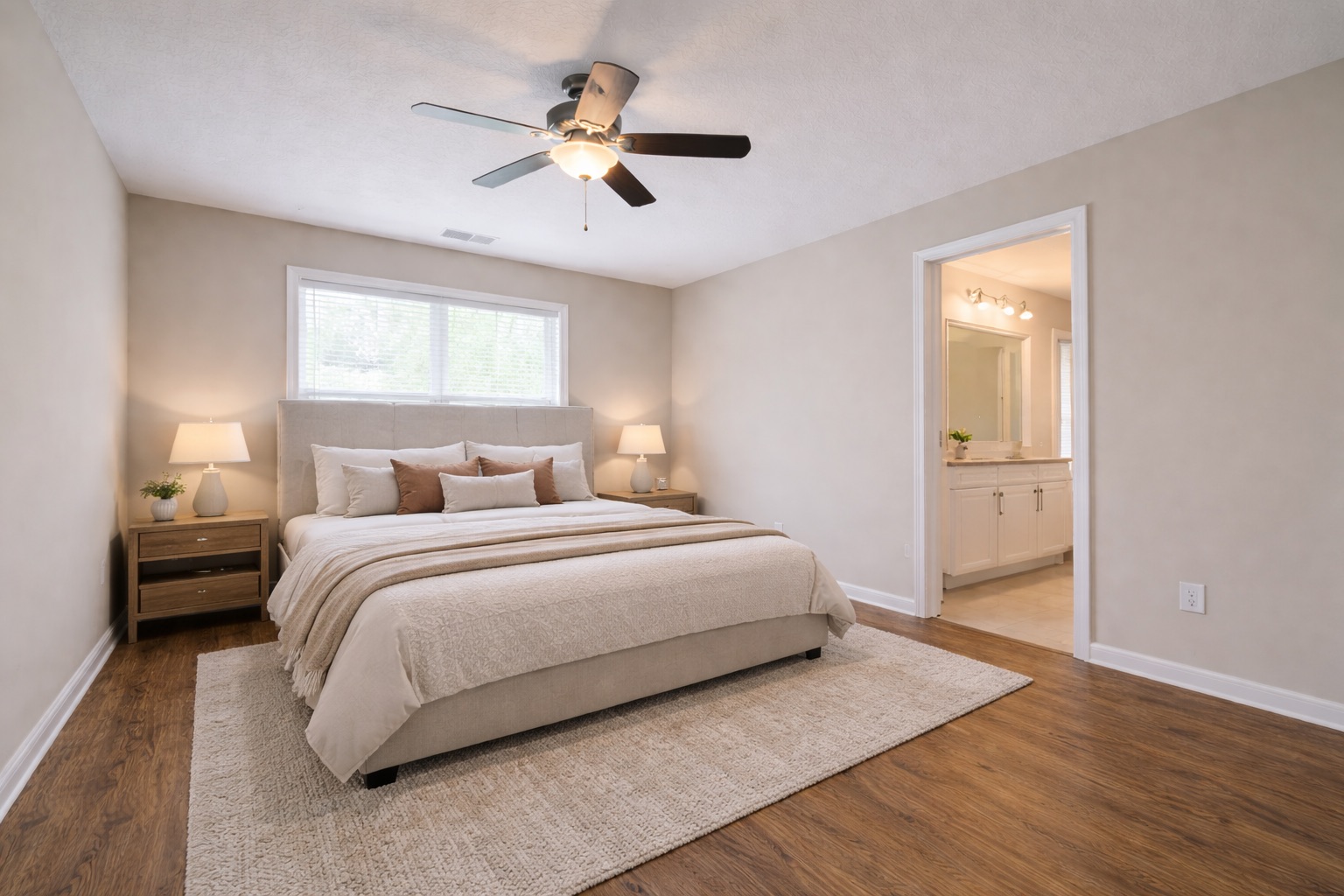
Owner's furniture
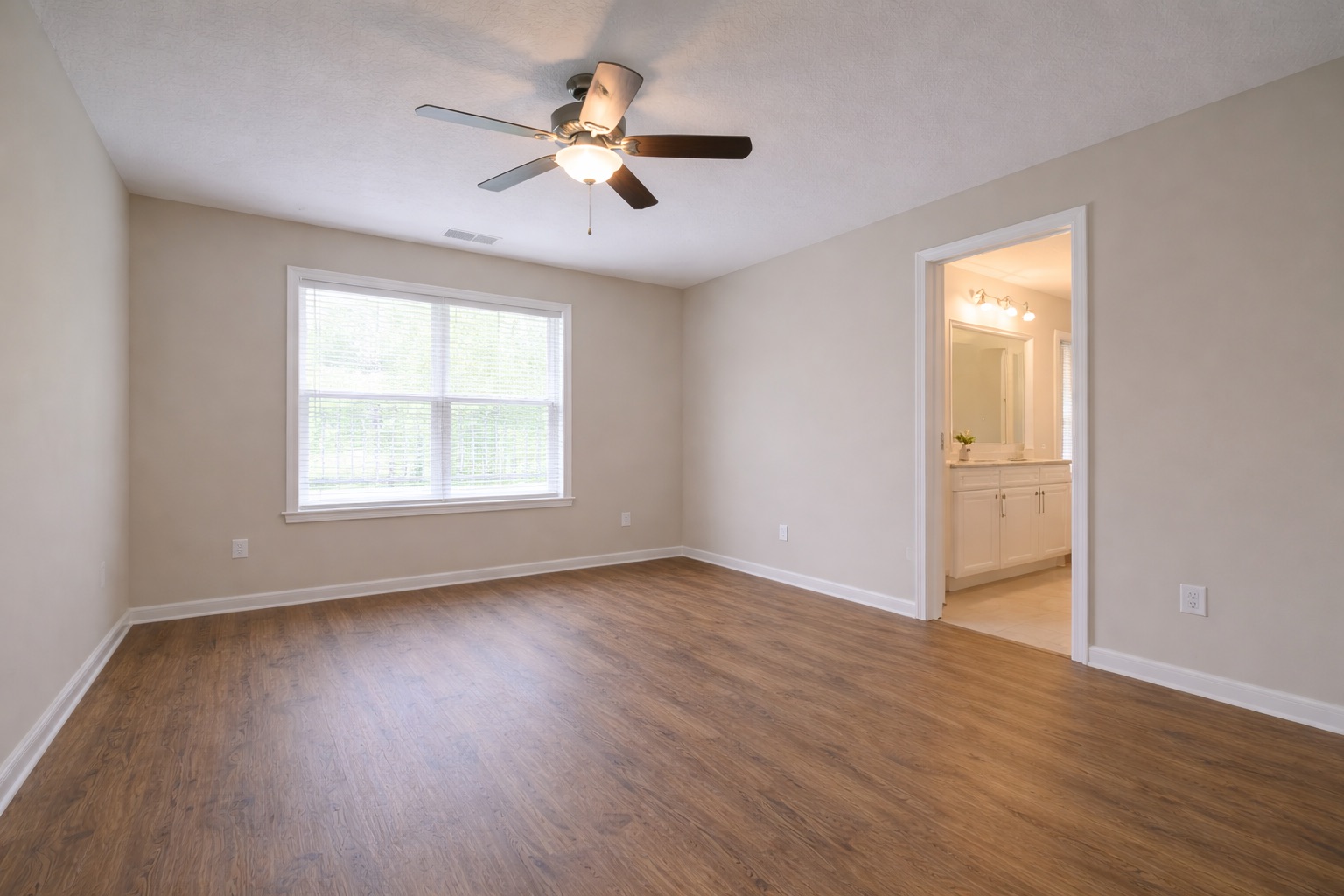
Unfurnished (AI)
It also works for occupied homes where the owner does not want to move anything yet: you can prepare marketing materials in parallel while you coordinate the physical handoff.
3. Refresh entryways, yards, and exteriors
First impressions happen before buyers cross the threshold. A dry lawn, a neglected entryway, or a lifeless patio can make someone pass on a property without stepping inside.
Switch to Exterior mode, pick the area (front yard, backyard, patio, or entryway), and a style: Modern, Traditional, Rustic, or Mediterranean. You can also adjust the time of day — natural light, golden hour, or sunset — so the curb appeal looks its best.
- Undecided buyer: show them how a refreshed yard could look during the showing
- Property with potential: use the image in the listing to convey the real exterior value
- Renovation: generate style options so the owner can choose a direction before investing
4. Albums on listings and WhatsApp
When you have multiple staged rooms, create them as an album from the Generated Images gallery. Each album has its own public link with all versions.
Three ways to distribute it:
- WhatsApp direct — share an image or album in one click; the message includes the link with a before/after slider
- During a showing — open the album on your device and walk through versions room by room
- On the public listing — link the album from the property editor; visitors will see View Staged Images on the listing page
To link an album: open the property in the editor → Virtual Staging section → select the album. Ideal when you want the online listing and your in-person presentation to show the same thing.
5. Furnish empty spaces for the listing
The classic virtual staging use case still holds: a vacant home sells slower because it is hard to imagine life there. Industry studies cite up to 73% faster sales and better perceived value with furnished spaces.
Upload the photo of the empty room, choose the room type, and a style that fits the price point and neighborhood. Keep the same style across all rooms in a property so the listing looks professional.
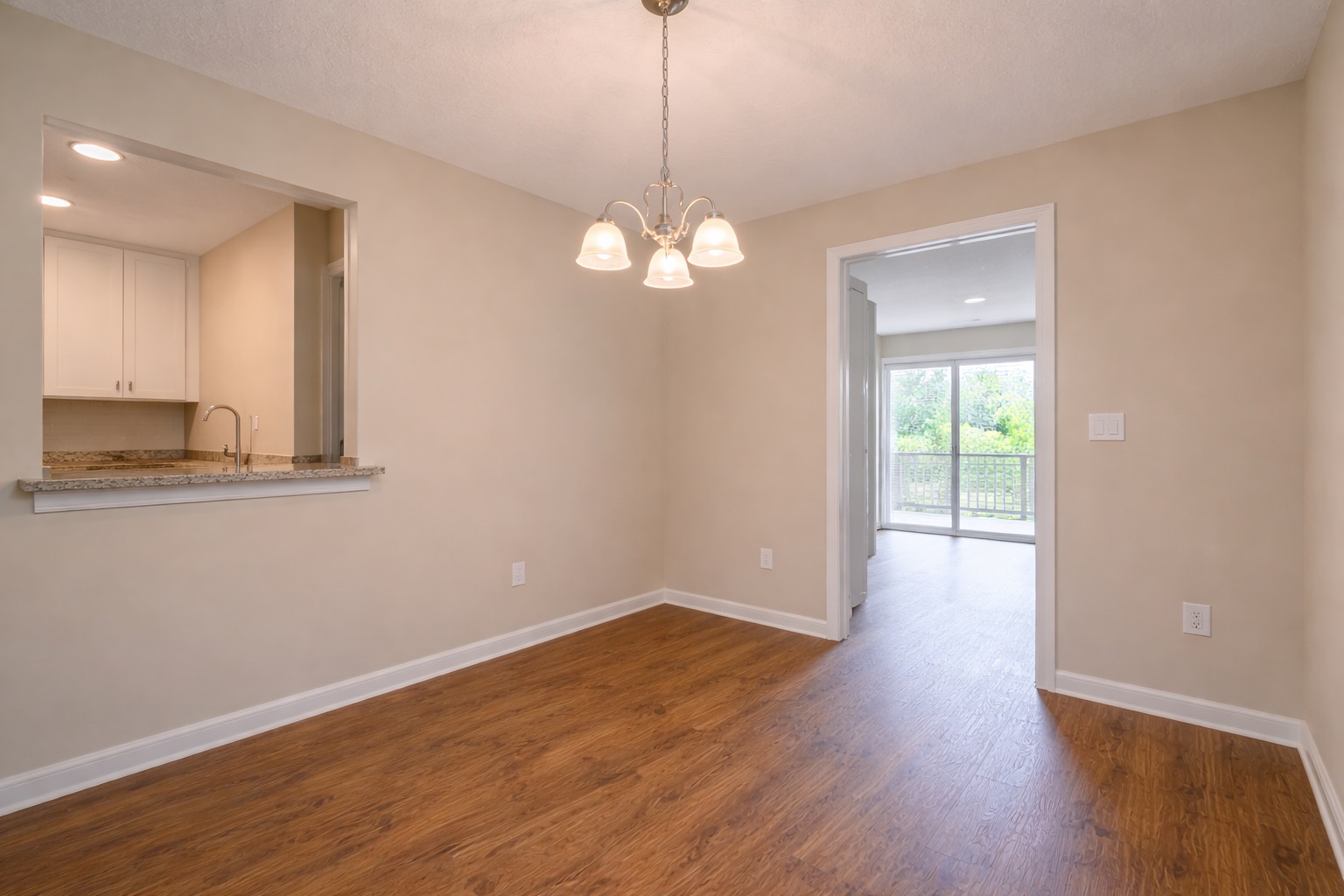
Empty dining room
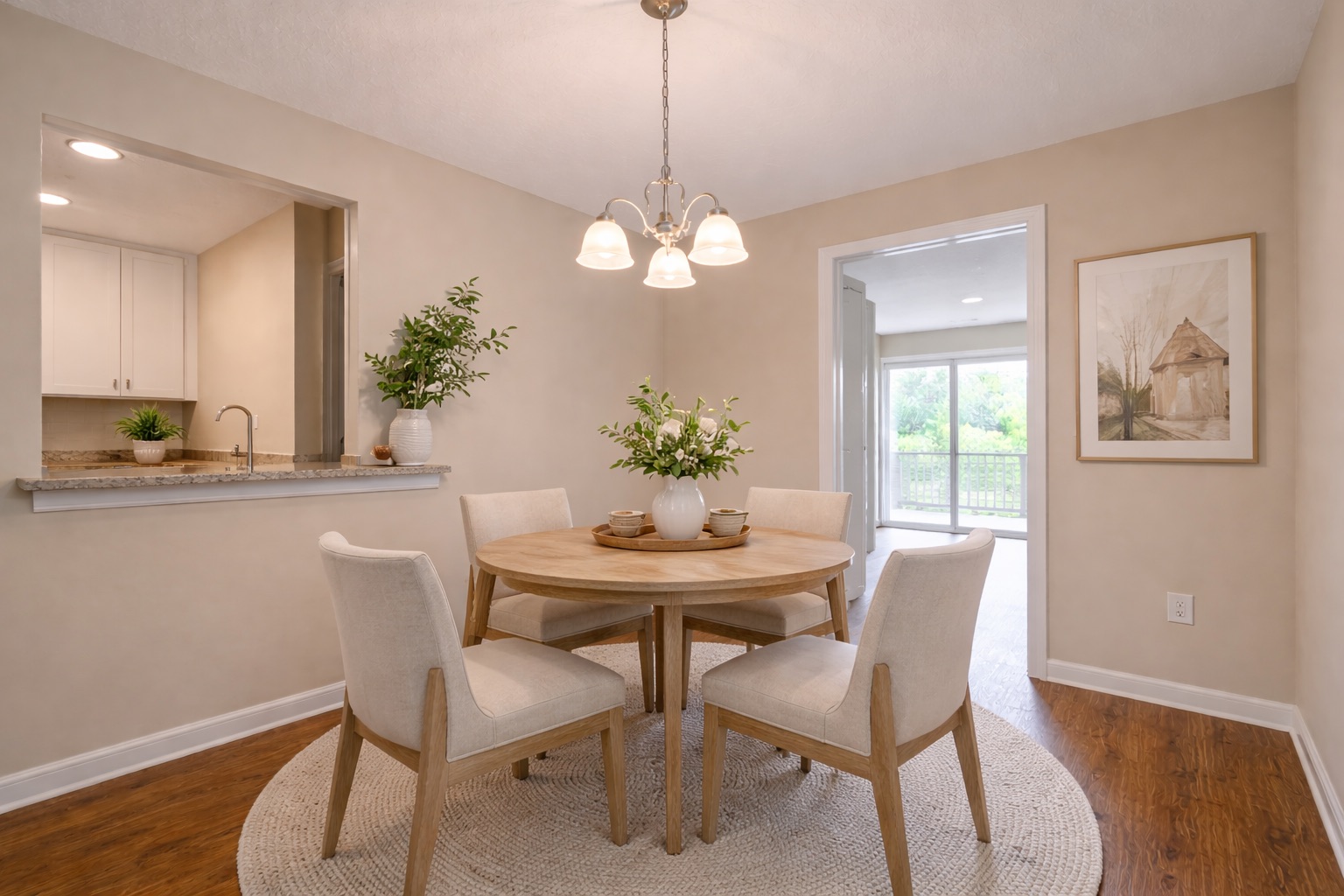
Staged dining room