For months, agents kept asking us the same question: "Can I change how my listing page looks?" Not every property sells the same way — a rental in Brooklyn doesn't need the same presentation as a luxury home for sale in Scottsdale.
Today we're launching the answer: two page templates so each listing gets the design that converts best. No code, no designer, no waiting. Pick a template, preview it with your real photos and description, and publish.
They're called Gallery and Showcase. Here's how they differ, who each one is for, and how to start using them today. And this is just the beginning — more templates are on the way.
Why your listing page design matters
When you share a listing via text, Instagram, or email, the buyer or renter lands on your property page. That page has seconds to build trust, show the value of the home, and make contact easy.
A static PDF or an Instagram carousel doesn't capture leads in an organized way. A well-designed listing page does: photos in order, key details visible, map, WhatsApp button, and contact form — all in one link.
+ trust
A professional page signals credibility before the first message
+ leads
Contact form and WhatsApp visible at peak interest
+ time
No manual design work — pick a template and go
What are page templates?
A template defines the layout of each listing's public page: how photos are arranged, where price appears, whether there's a map, and how the contact form and WhatsApp button are presented.
Your content (photos, description, location, price) stays the same. What changes is the presentation. You can preview both designs with your actual listing before deciding — like swapping the storefront display for the same product.
Each listing can have its own template. A home for sale might use Showcase; a rental in Austin might use Gallery. You decide listing by listing.
Gallery template: the complete listing page
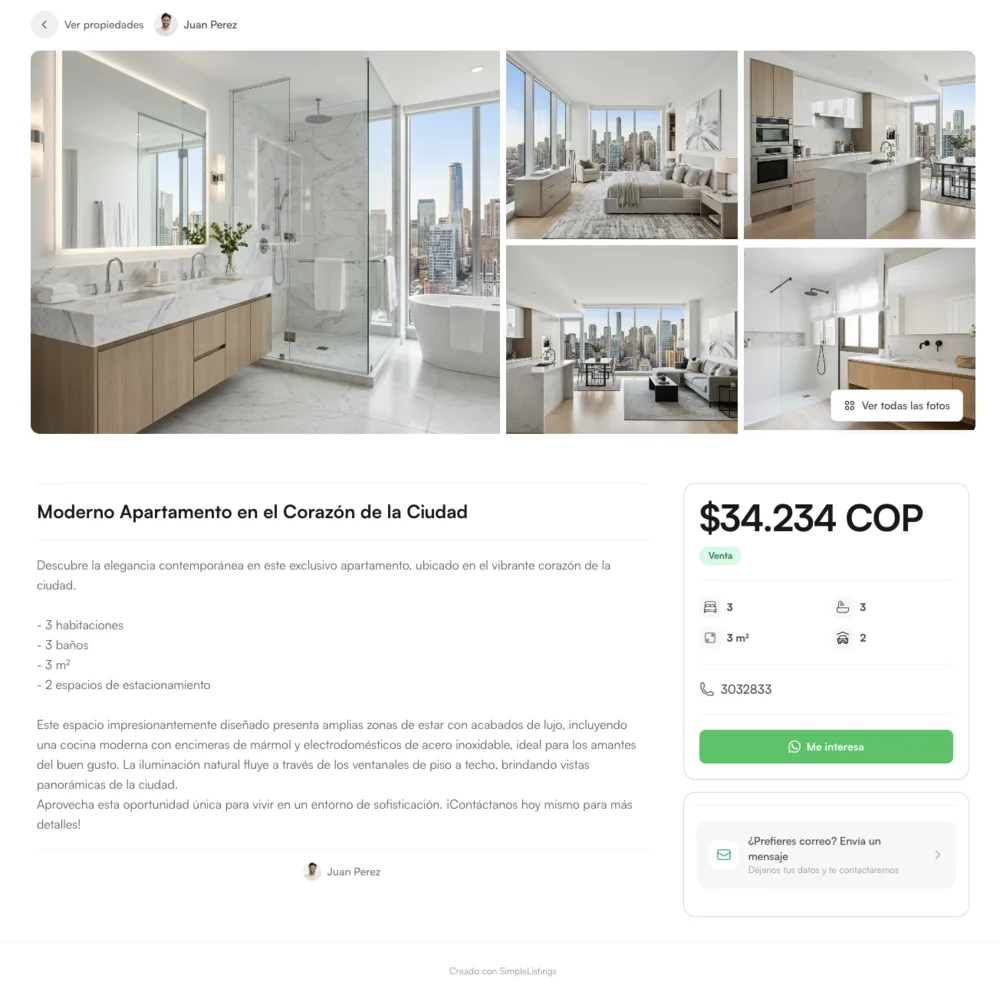
Gallery is the classic listing page layout: hero photo, desktop photo gallery, a data column (bedrooms, bathrooms, square footage, parking), neighborhood map, and a side contact panel with WhatsApp and a form.
It works especially well when:
- The buyer wants to see every photo before reaching out
- You're sharing listings with detailed specs (amenities, square footage, floor plan)
- Your audience is comparing options — rentals, condos, or a broad inventory
- You want a complete listing page without a campaign-style feel
Showcase template: high-impact promotional page
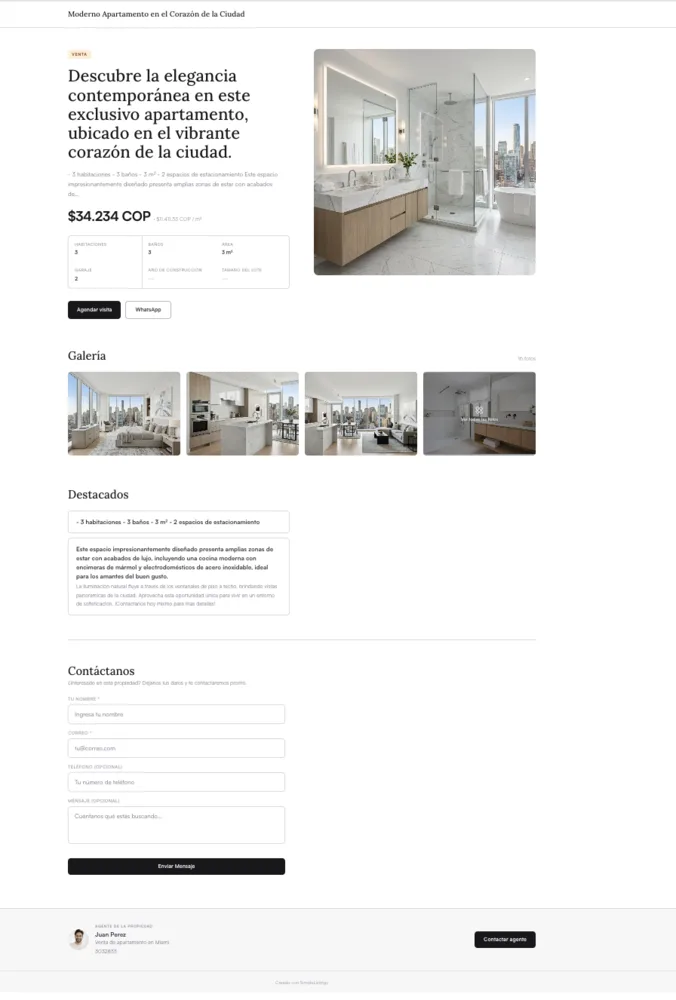
Showcase turns the listing into a promotional page with personality: bold headline, visual narrative, an "About the property" section alongside key features, integrated gallery, and a contact block with form and lead qualification.
It works especially well when:
- You're promoting a featured listing: new construction, exclusive, or luxury property
- You're sharing the link on Instagram, Stories, or ads where first impression is everything
- You want the page to feel like a marketing presentation, not just a spec sheet
- You want to capture leads with a prominent form without losing polish
Gallery or Showcase: which should you pick?
| Gallery | Showcase | |
|---|---|---|
| Focus | Photos and full property data | Story and visual impact |
| Best for | Rentals, comparison shopping, large inventory | Exclusives, new listings, social media |
| Map | Yes, dedicated section | Integrated in the flow |
| Contact | Side panel + sticky bar on mobile | Prominent form block |
There's no single right answer. Many agents use Gallery by default and switch to Showcase for their star listings of the month. The advantage: you can change anytime without rebuilding the page.
More designs coming soon
Gallery and Showcase are the first two templates, but not the last. We're working on new designs you'll be able to choose from the same editor. If you have ideas, we'd love to hear them.
How to choose and apply a template
In any listing editor, you'll find the Page design section. There you'll see both templates with thumbnail previews.
- Open the listing you want to customize
- Go to Page design or click Change design in the top bar
- Click Preview designs to see your real content in both layouts
- Compare Gallery and Showcase using the selector at the top
- Apply the design you prefer — it saves to that listing instantly
Available on the Pro plan
On the free plan you can preview both designs with your listing. To choose and save a template, you need the Pro plan or higher. View plans →
All new listings start with Gallery by default. If you never change anything, your page works exactly as before — you just gained the option to customize when you need it.