Property page designs
Choose how each listing looks to buyers — Gallery, Showcase, Reel, or Editorial — including on agent share links.
What templates do
A page template is the layout buyers see when they open a property. Same photos and details; different presentation.
Page templates (Gallery, Showcase, Reel, Editorial) are included on Pro and Advanced. Free does not include page templates. You can change the template anytime without losing your content.
How to choose a template
- Open the property in the editor.
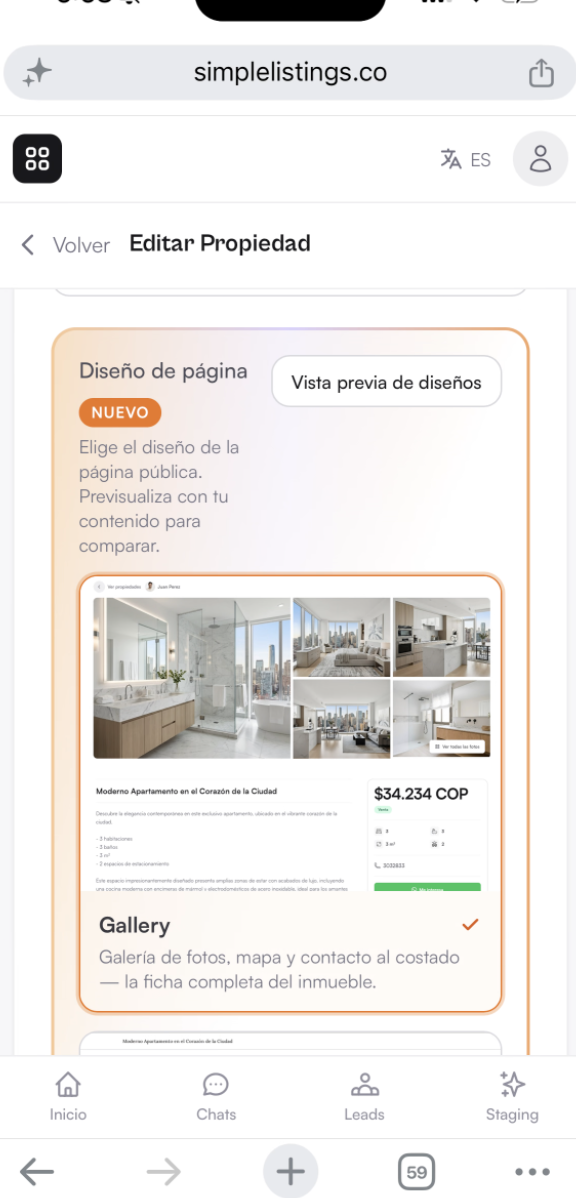
- Find Page design (or Diseño de página).
- Select a template. Use Preview designs to compare with your real content.
- Save, then open the public page once to confirm it looks right.
Which template fits what
- Gallery — classic listing: photo gallery, details, map, and contact on the side. Great as a default.
- Showcase — promotional, editorial feel with a strong headline and clear contact block. Good for featured homes.
- Reel — vertical, video-first. Best when you have a short listing video.
- Editorial — photo-forward layout in the same family as Reel, focused on imagery.
Agent links use the same template
If a listing is assigned to an agent, the agent URL (/a/…) uses the same template as the main listing URL.
Contact and share links stay scoped to that agent. You do not need to pick a second template for agent links.
Tips
- Use Gallery if you are unsure — it works for almost every listing.
- Use Reel only when you have a good short video; otherwise Gallery or Showcase is clearer.
- After changing a template, refresh the public page (or open it in a private window) to see the update.
Common questions
Can each property have a different template?
Yes. Templates are per listing, so a featured home can use Showcase while others stay on Gallery.
Does changing the template delete photos or text?
No. Only the layout changes. Your content stays.
Which plans include page templates?
Pro and Advanced. Free does not include Gallery, Showcase, Reel, or Editorial.