How to add properties
Create a listing from a link, Instagram, or your own photos — then review everything before you publish.
Start from the dashboard
On your home screen, tap Add property. You will land on a new listing where you can add photos and details.
Nothing goes live until you publish. Imports only pre-fill the form so you can check the copy, price, and photos.
Three easy ways to add photos
In the property images section you can upload photos yourself, or pull them in automatically:
- Upload — pick images from your phone or computer (up to your plan’s photo limit).
- Import from a link — paste a public property URL; we try to bring photos and details for you to review.
- Import from Instagram — connect a professional Instagram account (Business or Creator), then choose posts or Reels to turn into listings.
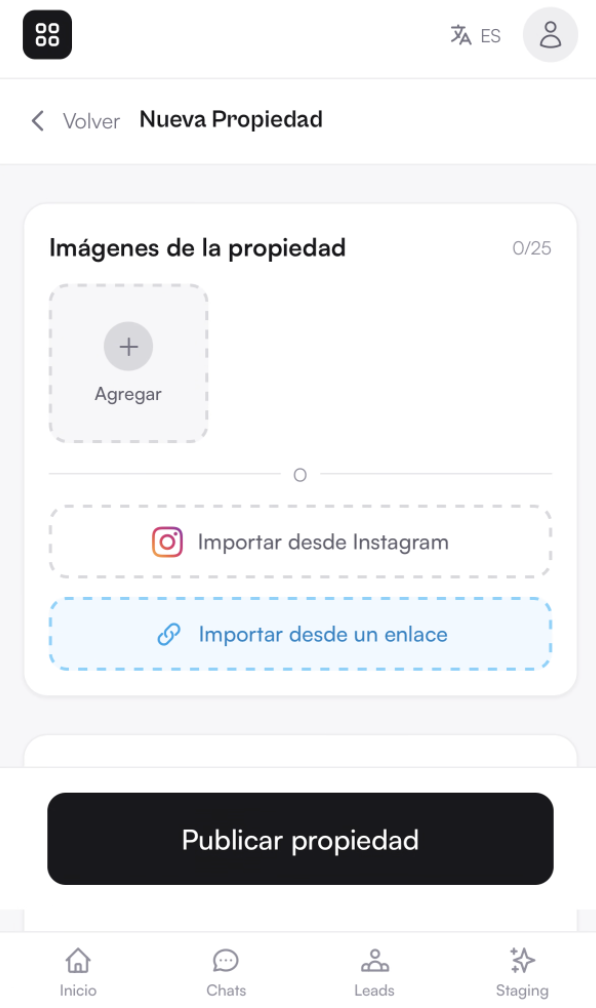
Import from a link
- Open Add property (or edit a draft).
- Tap Import from a link.
- Paste the public URL of the listing and start the import.
- Review title, price, description, and photos — fix anything that looks off.
- Save or publish when you are happy.
Note: URL imports never auto-publish. Always review before sharing with buyers.
Import from Instagram
Best if you already post properties on Instagram. You need a professional Instagram account (Business or Creator) — personal accounts cannot connect for import.
Connect once under Edit profile → Integrations, or start from Import properties / the Instagram signup flow. Then load your feed and pick posts or Reels.
- Connect Instagram (Business or Creator) in Edit profile → Integrations, if you have not yet — or continue from the Import from Instagram onboarding.
- Open Import properties from the dashboard, or use Import from Instagram when creating a property.
- Load your Instagram feed and select the posts or Reels you want (photos, carousels, and videos).
- Review each draft — caption, photos/video, and details — then publish when ready.
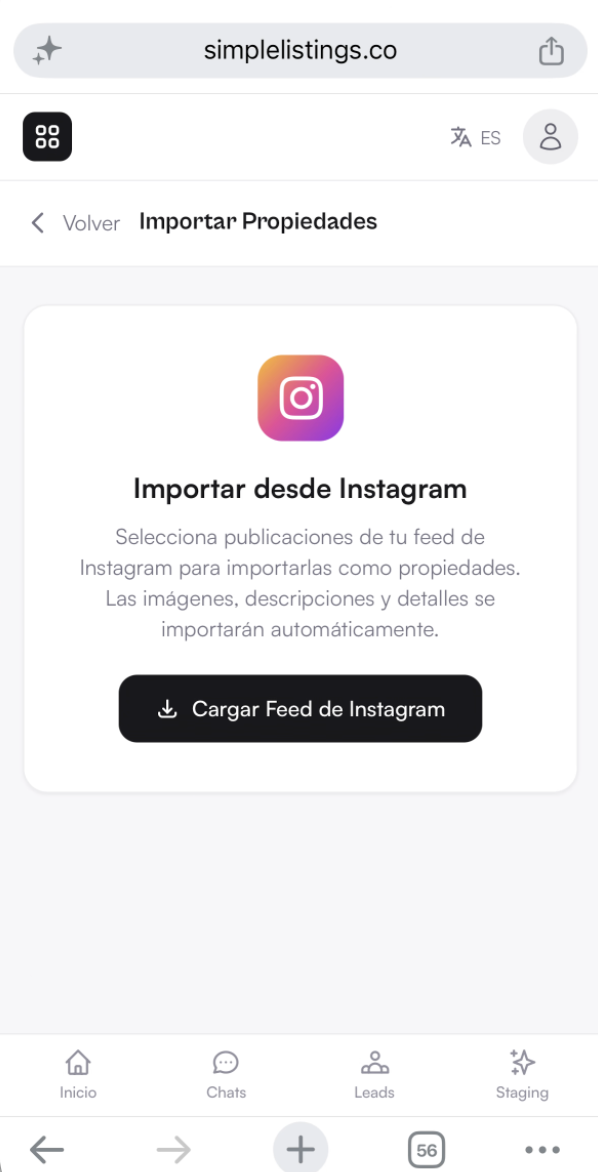
Note: Imports never auto-publish. You can also create a listing from photos or import an existing page URL without connecting Instagram.
After photos: finish the listing
- Check price, currency, and sale vs rent.
- Add location and key details (beds, baths, size) so buyers can filter.
- Write or refine the description — AI can help on plans that include it.
- Choose a page template on Pro or Advanced (Gallery, Showcase, Reel, Editorial). Free does not include page templates.
- Assign an agent if someone on your team should get the leads.
Plan limits (quick view)
- URL imports: limited on Free; unlimited on Pro and Advanced.
- AI descriptions: lifetime or monthly limits depending on plan.
- Published listings: check your plan for how many can be live at once.
- Page templates (Gallery, Showcase, Reel, Editorial): Pro and Advanced.
Common questions
Will importing publish the listing right away?
No. Imports create a draft for you to review. You choose when to publish.
The import missed some details. Is that normal?
Yes. Sites and Instagram posts vary. Treat the import as a head start, then fill gaps manually.
Do I need a professional Instagram account?
Yes, to import posts or Reels directly you need Instagram Business or Creator. You can still add properties from photos or a URL without connecting Instagram.