WhatsApp button and WhatsApp AI Agent
Add a WhatsApp button on your listings, or connect WhatsApp to use the WhatsApp AI Agent and see chats in Messages.
Start here: which option do you need?
Most agents only need buyers to tap WhatsApp on a property page. That takes about two minutes.
Connect WhatsApp only if you want the WhatsApp AI Agent, or if you want chats to appear in Messages inside SimpleListings.
- WhatsApp button — add your number in your profile. Buyers message you on your phone. No Facebook connection required.
- WhatsApp AI Agent — connect your WhatsApp Business app through Facebook. Chats sync to Messages, and you can turn on the AI assistant.
Option 1: WhatsApp button on property pages
This is enough if you just want a green WhatsApp button on each listing.
- Open Edit profile from the menu or dashboard.
- On the Profile tab, enter your WhatsApp number with the correct country code.
- Under On property pages, turn on Show WhatsApp contact button.
- Save your changes.
- Optional: Show phone number on listings — displays the number as well as the button.
- Optional: Ask for number before opening WhatsApp — captures the visitor’s phone before they leave to chat.
Note: You do not need to connect Facebook for the contact button to work.
Option 2: WhatsApp AI Agent (connect WhatsApp)
Use this when you want the WhatsApp AI Agent, or when you want conversations inside Messages in SimpleListings.
You keep using WhatsApp Business on your phone as usual. SimpleListings connects in the background — it does not replace your app.
Before you connect
- WhatsApp Business installed on your phone, with the number you want to use.
- A Facebook account that can manage your business.
- Your phone nearby (you will scan a QR code and confirm a few prompts).
- About 5 quiet minutes so you do not lose the Facebook window mid-flow.
Start the connection in SimpleListings
- Open Messages in the menu, or go to Edit profile → Integrations.
- Click Connect WhatsApp with Facebook.
- A step-by-step guide opens in SimpleListings — keep that tab open while you finish Facebook.
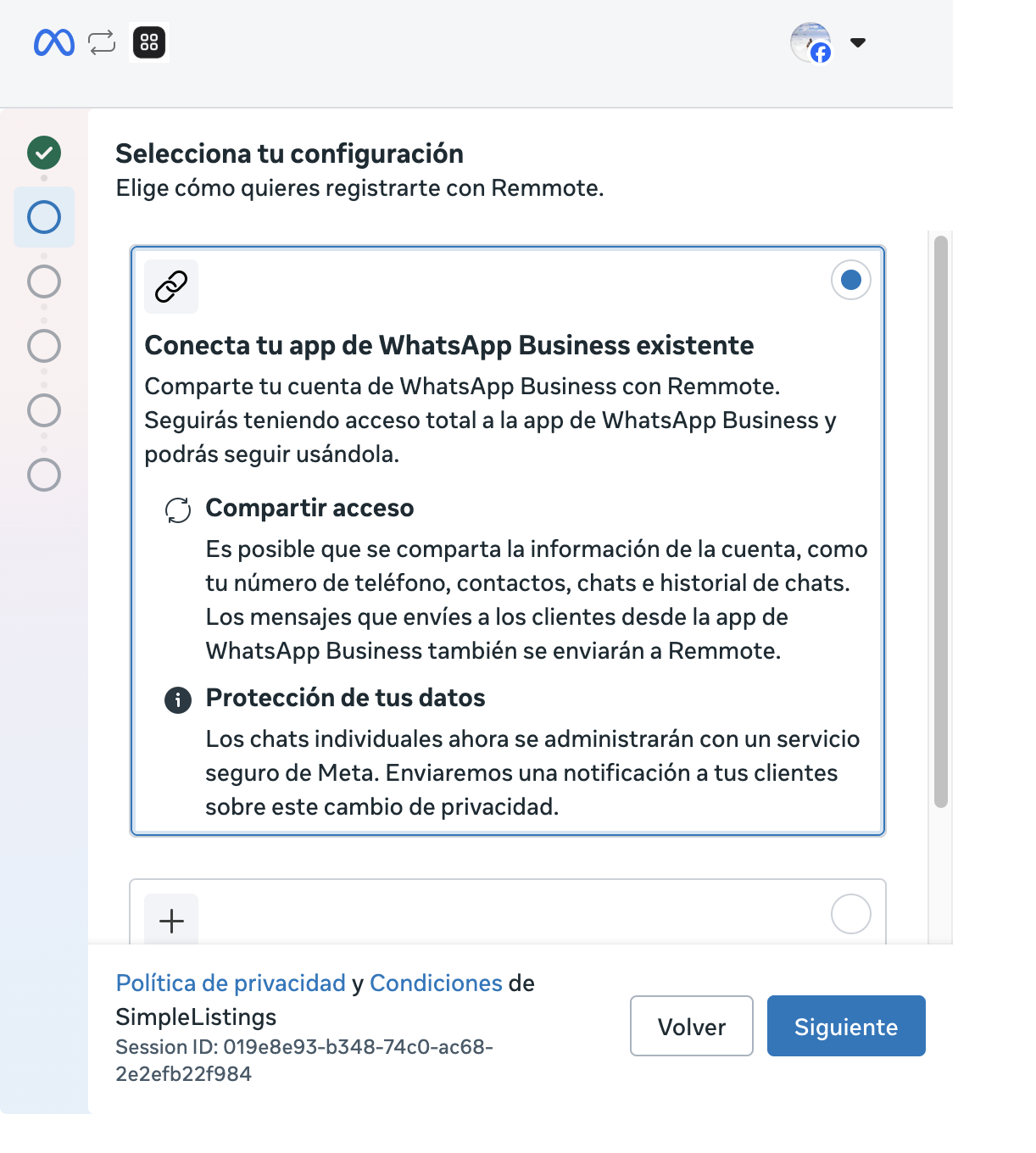
In the Facebook window
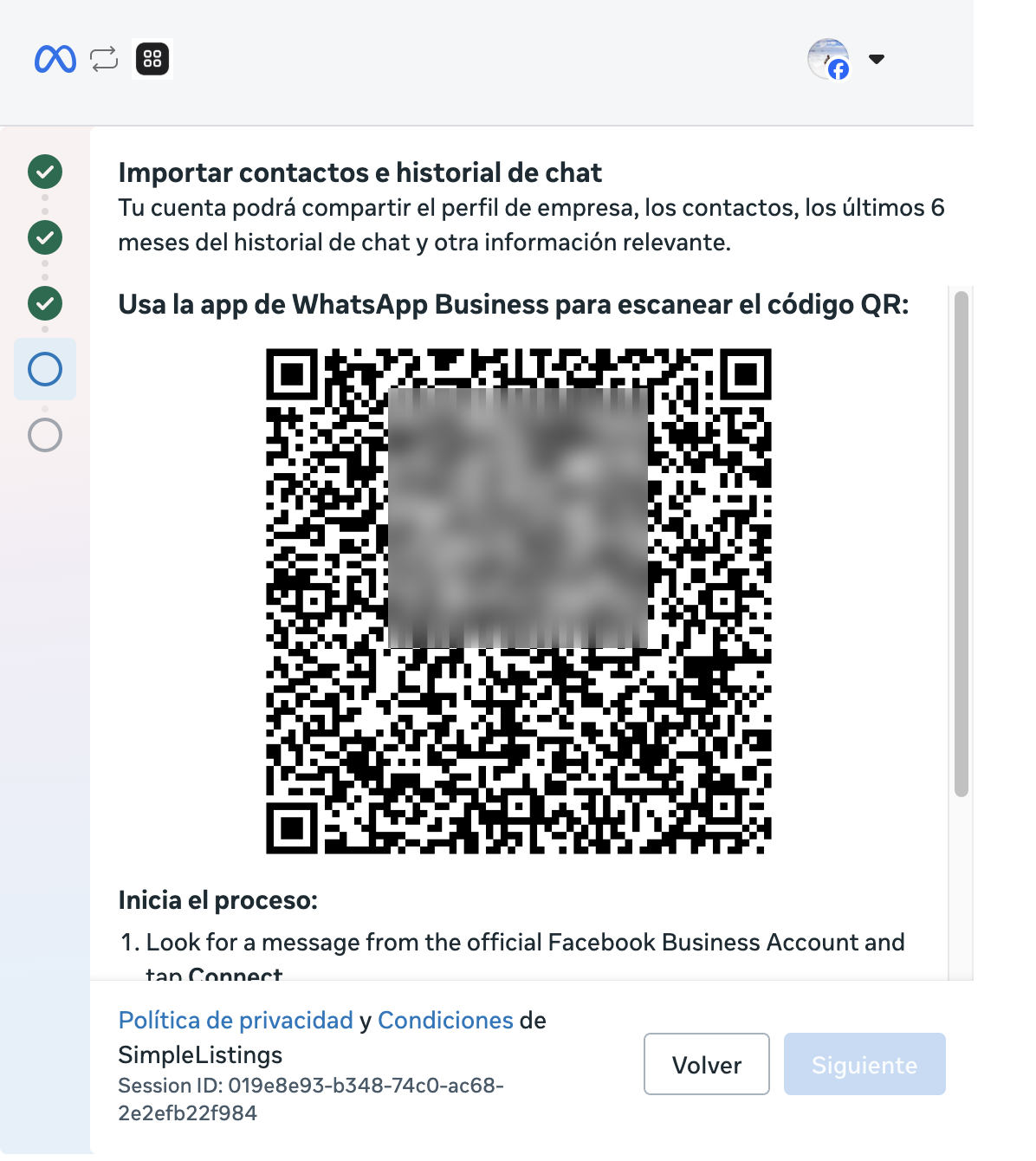
Facebook opens a secure window. Follow each screen there, then use Continue in the SimpleListings guide to move forward.
These are the screens you will typically see:
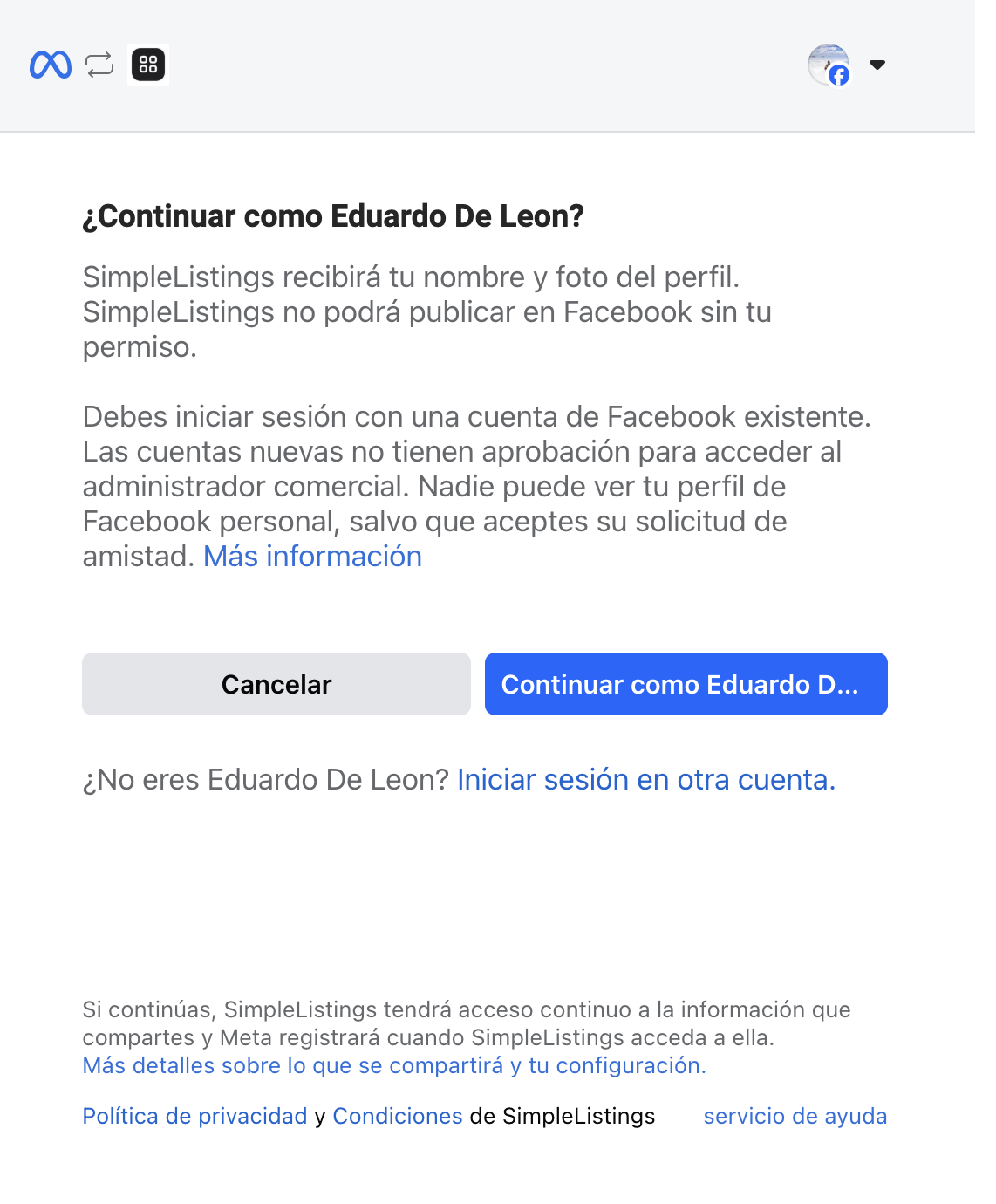
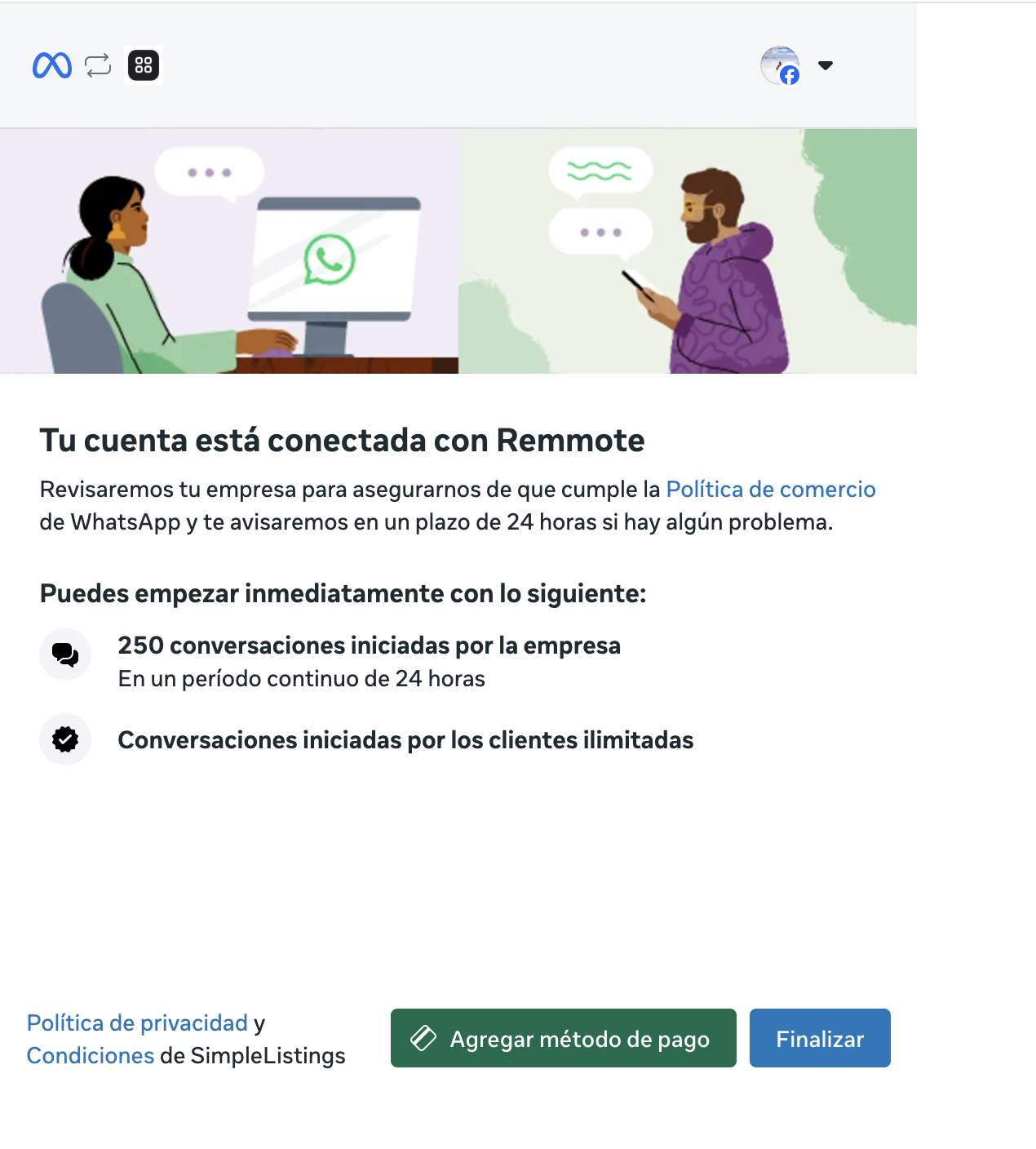
Note: Meta may ask for a payment method at the end. You can skip it unless you send paid WhatsApp marketing campaigns.
On your phone
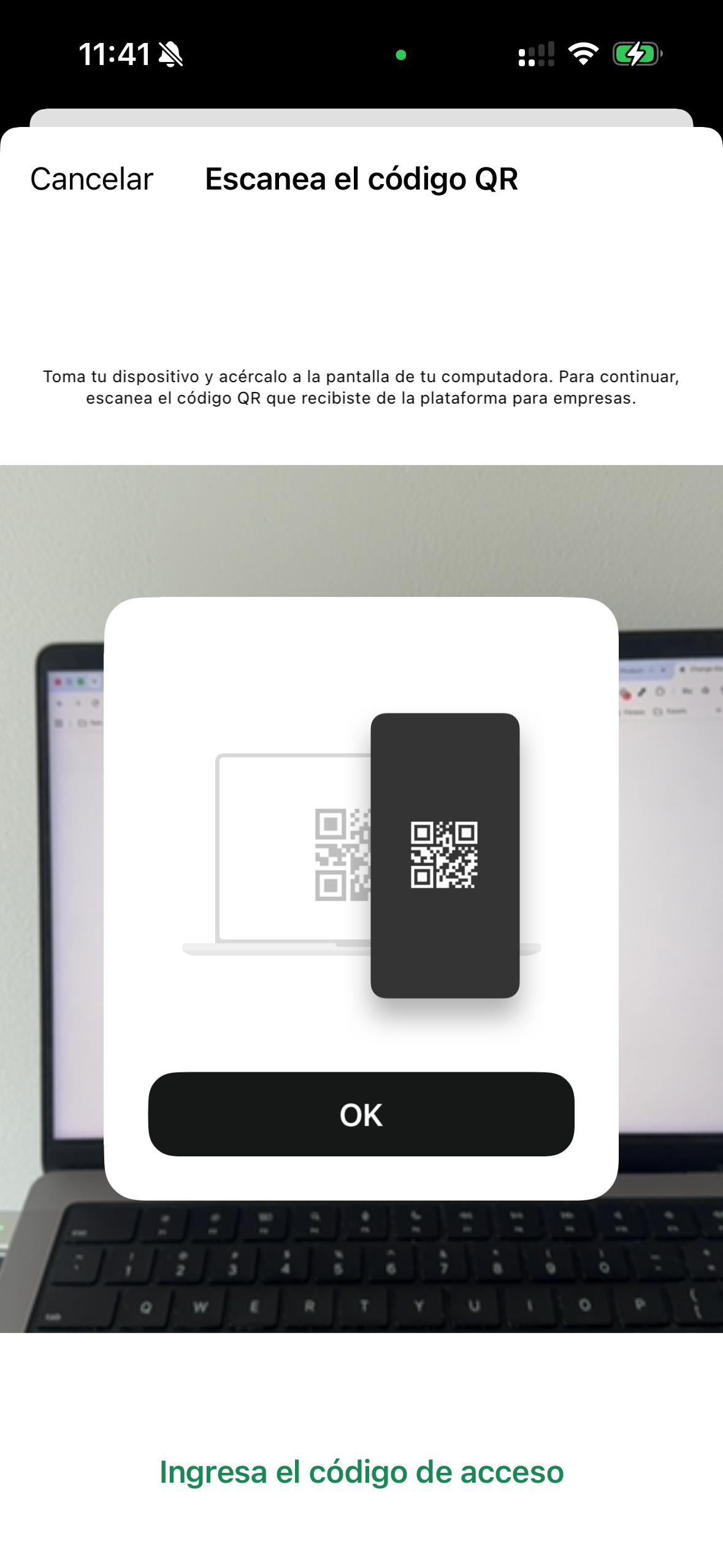
While the QR is on your computer, open WhatsApp Business on your phone.
- Look for a message from Facebook Business and tap Connect (or follow the on-screen prompts).
- When asked, share chat history if you want past conversations to appear in SimpleListings (recommended).
- Scan the QR code shown in the Facebook window on your computer.
After you connect
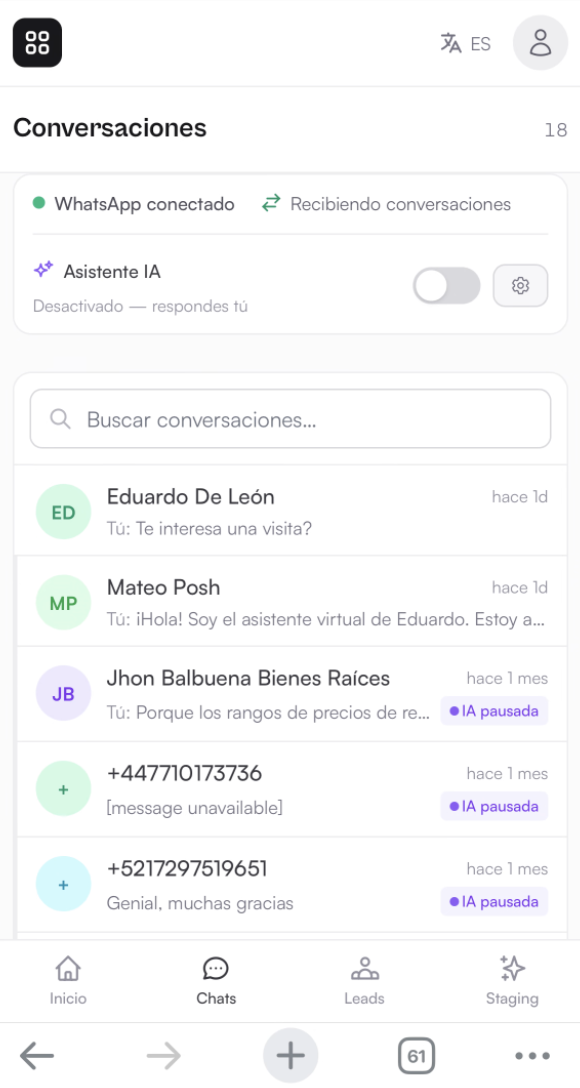
- Return to SimpleListings and click Refresh to verify connection.
- You should see WhatsApp connected in Messages.
- If your plan includes the WhatsApp AI Agent, you can turn it on from Messages when you are ready.
Limitations (good to know before you connect)
The WhatsApp button on listings has no special limits — just add your number.
Connecting WhatsApp so the app and SimpleListings share the same number uses WhatsApp’s coexistence mode. You keep chatting on your phone, but Meta applies a few rules:
- Disappearing messages — not available in 1-to-1 chats while connected.
- View once photos or videos — turned off in 1-to-1 chats.
- Broadcast lists — existing ones become read-only; you cannot create new ones from the app while connected.
- Open WhatsApp Business at least every 13–14 days — if the app sits unused for more than about two weeks, WhatsApp may disconnect the account.
- Do not uninstall or reinstall WhatsApp Business while it is connected — that breaks the link with SimpleListings.
- Linked devices (WhatsApp Web, Mac app, etc.) — WhatsApp unlinks them when you connect; you can link up to 4 again. WhatsApp for Windows is not compatible with this mode.
- Your number must start from the WhatsApp Business app on your phone — if it is only registered on the WhatsApp API (no app), free it in Meta Business Manager first and set it up again on the phone.
- To disconnect — do it from the phone: Settings → Account → Business Platform → Disconnect account.
Note: The WhatsApp AI Agent is on the Advanced + WhatsApp AI Agent plan, with a monthly allowance of automatic replies. Pro and Free include the WhatsApp button on listings, but not the AI agent.
Common questions
Do I need to connect WhatsApp for the green button on listings?
No. The WhatsApp button only needs your number in Edit profile.
Will I still get messages on my phone?
Yes. Your WhatsApp Business app keeps working. SimpleListings can also show those chats in Messages when connected.
What if connection fails?
Close the Facebook window, start Connect again from Messages or Integrations, and finish the steps without switching tabs mid-flow. Make sure you choose your existing WhatsApp Business app.
What happens when I reach the AI reply limit?
Buyers can still message you normally. The assistant stops auto-replying and you take over. The allowance renews each month.